
TurboTax printing problems: how to print or save your return
Short answer
Most TurboTax printing problems are solved by saving the return as a PDF first and printing that file. In TurboTax Online, go to Tax Tools, Print Center, and choose Print, save, or preview this year's return; in Desktop, choose File, Print/Save for Your Records, Save As PDF. Online asks you to pay any fees before it lets you print.
- 01Online print path
- Tax Tools, Print Center
- 02Desktop print path
- File, Print/Save for Your Records
- 03Fees before printing (Online)
- Must be paid first
- 04Past returns in Online
- Last seven years as PDFs
- 05Restart tip from Intuit
- Computer and printer off for 30 seconds
Why won't TurboTax print my return?
TurboTax printing problems usually come from one of four places: unpaid fees in TurboTax Online, a browser that blocks or garbles the PDF, an outdated TurboTax Desktop, or the printer itself. TurboTax never sends pages straight to a printer from Online; it builds a PDF, and your PDF reader does the printing. So the fastest test is to save the PDF and open it on its own.
| What you see | Likely cause | First fix |
|---|---|---|
| Asked to pay when you click print | Fees not yet paid (Online) | Pay or choose to file later; the PDF is available after payment |
| PDF opens but the forms are blank | Browser cache or built-in PDF viewer | Clear cache, sign in again, or try another browser |
| Nothing happens after clicking print | Pop-up or download blocked | Allow pop-ups and downloads for the TurboTax site |
| Desktop print window freezes | Missing TurboTax updates | Install updates, then print again |
| PDF looks right but paper never comes out | Printer or driver | Print a test page from another program |
How to use the TurboTax Print Center in Online
The TurboTax Print Center is the screen in TurboTax Online that builds a PDF of your return. Intuit's steps are below. On a phone, the Tax Tools menu is behind the menu icon in the upper left.
- Open your return and select Continue or Start from Tax Home.
- Choose Tax Tools, then Print Center.
- Select Print, save, or preview this year's return.
- Pay any TurboTax fees if asked. Intuit states the print option requires payment first.
- Choose whether to include worksheets, then let the PDF open.
- Save the PDF to your computer, then print it from the PDF reader's print button.
If you want every supporting schedule, tick the option to include government and TurboTax worksheets. The shorter version without worksheets is what most people need for records, a loan application or a paper filing.
TurboTax print return steps in Desktop
TurboTax Desktop prints from the File menu. Open the return, choose File, then Print/Save for Your Records, and pick Save As PDF or Preview Print Copy. Saving as PDF is the more reliable route, because it separates TurboTax from the printer.
When Desktop freezes or shows an error while printing, install all TurboTax updates first; Intuit lists that as a step for Desktop printing trouble. If updates will not install, fix that problem before printing, using TurboTax won't update.
TurboTax PDF download not working: blank or missing files
A PDF that downloads blank, or does not download at all, is nearly always a browser issue rather than a problem with your return. Work through these in order and test after each one.
- Sign out of TurboTax completely, clear the browser cache and cookies, then sign back in and print again.
- Try a different browser, such as Edge instead of Chrome or the reverse.
- Allow pop-ups and downloads for the TurboTax site in the browser's site settings.
- Choose save instead of preview, then open the saved file from your Downloads folder in a dedicated PDF reader such as Adobe Acrobat Reader rather than inside the browser.
- On Windows, check which program is the default for PDF files; updates sometimes switch it back to the browser.
For returns you already filed, you do not need the Print Center. TurboTax Online keeps the past seven years under Tax Home, Your tax returns & documents, with a Download/print return (PDF) link for each year. The full walkthrough is on download a prior-year tax return from TurboTax.
TurboTax not printing my tax returns: printer driver problems
If the PDF looks right on screen but nothing prints, TurboTax is no longer involved. Intuit's own first check is to print something else; if that fails too, the fix is on the printer side.
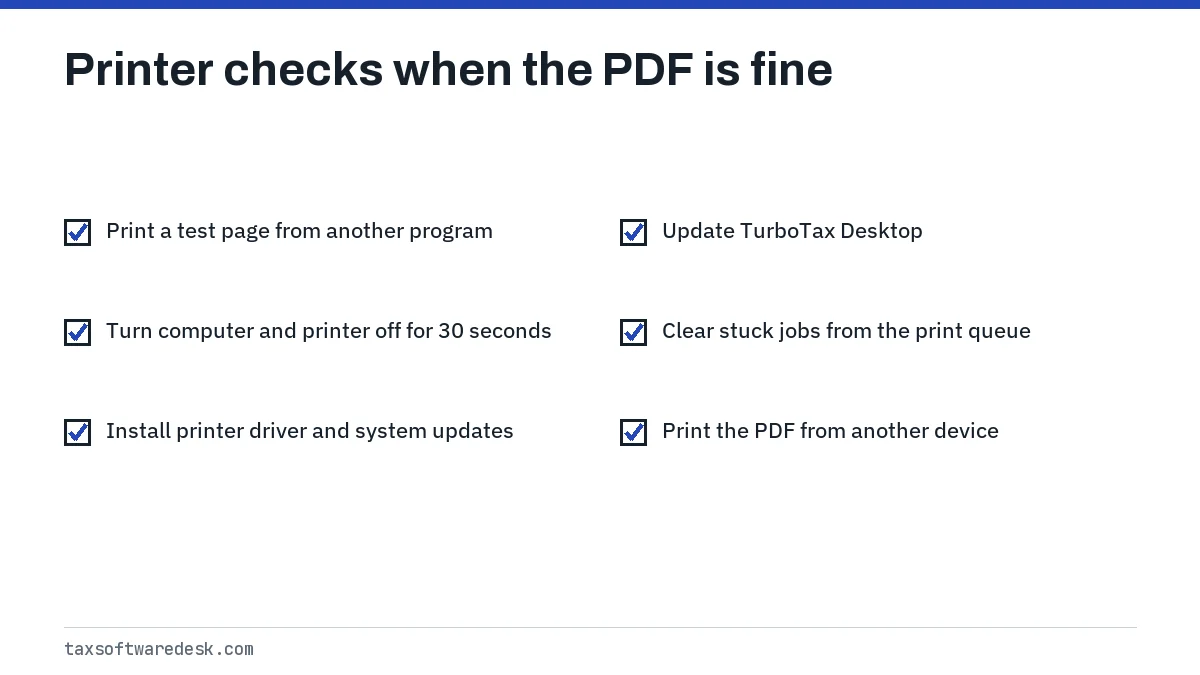
Intuit's troubleshooting page adds three steps: shut the computer and printer down for 30 seconds and turn them back on, make sure the printer and the computer have all updates installed, and in Desktop, make sure TurboTax itself is updated. If the printer still refuses, copy the PDF to a USB drive or email it to yourself and print it from another device.
Keep a PDF of every year you print
Once you have a clean PDF, store it outside the TurboTax folder. That same PDF is what other software imports if you switch products next year. If you stay with TurboTax, last year's data carries forward through your account or data file instead; see TurboTax import previous year. Desktop users should keep the matching data file too, as explained on the TurboTax .tax file page.
All the ways data moves in and out of TurboTax are summarized in our TurboTax import guide.
Step by step
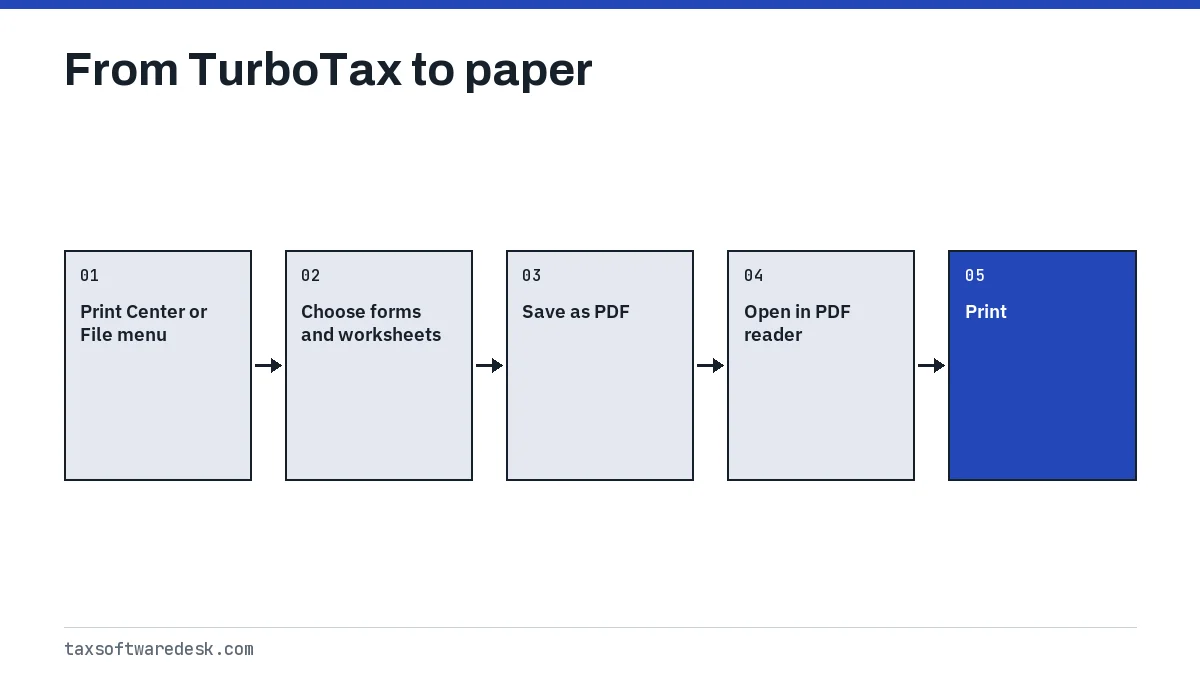
Open the print option
Online: Tax Tools, Print Center. Desktop: File, Print/Save for Your Records.
Choose the forms
Pick this year's return and decide whether to include worksheets.
Save as PDF
Save the PDF to your computer instead of printing from the browser preview.
Open in a PDF reader
Open the saved file in a dedicated PDF reader.
Print
Print from the PDF reader; if the printer fails, test it with another document.
Common questions
How do I save my TurboTax return as a PDF?
In Online, go to Tax Tools, Print Center, and choose Print, save, or preview this year's return, then save the PDF. In Desktop, choose File, Print/Save for Your Records, then Save As PDF.
Why does TurboTax make me pay before I can print?
TurboTax Online requires any fees to be paid before it produces a printable return. Your entries stay on screen for review before you pay; only the printable PDF is held back.
Why is my TurboTax PDF blank?
A blank PDF is usually a browser cache problem. Sign out, clear the cache and cookies, sign in again and save the PDF rather than previewing it, or try another browser.
Where is the Print Center in TurboTax Online on my phone?
Tap the menu icon in the upper left to expand the menu, then choose Tax Tools and Print Center.
Can I print my TurboTax return with all worksheets?
Yes. In the Print Center, select the option to include government and TurboTax worksheets before the PDF is created.
What if I still cannot print my TurboTax return?
Save the PDF and print it from another computer or a print shop. If you were printing to mail the return, Intuit suggests e-filing instead.
Sources
- Intuit: Can I print a copy of my return in TurboTax Online before I file it? ttlc.intuit.com
- Intuit: How do I fix issues while printing my return? ttlc.intuit.com
- Intuit: How do I view, download, or print a prior-year tax return? ttlc.intuit.com
We check figures against these official pages. Rules change; confirm anything that affects a deadline or payment with the agency before you act.
Tell us what happened
Describe your situation and our editors will use it to improve this guide. If you leave your email, we may reply with a pointer to the right page or official contact. We never share your details.