
How to import TurboTax to H&R Block, FreeTaxUSA or TaxAct
Short answer
You can import TurboTax to H&R Block in three ways: H&R Block's downloadable software reads a TurboTax Desktop .tax file or a PDF of last year's Form 1040, and H&R Block's online product offers Direct Import using the phone number on your TurboTax account. FreeTaxUSA and TaxAct accept only a PDF of the TurboTax return.
- 01H&R Block software accepts
- TurboTax .tax file or 1040 PDF
- 02H&R Block Online Direct Import
- Announced January 29, 2024; up to 150 data fields
- 03FreeTaxUSA accepts
- PDF of last year's 1040, new accounts only
- 04TaxAct accepts
- PDF of last year's return, before you print or file
- 05Most common H&R Block import failure
- Encrypted TurboTax file
Can H&R Block import my TurboTax return?
Yes. To import TurboTax to H&R Block, you give H&R Block either the TurboTax data file, a PDF of the filed return, or (in H&R Block's online product) permission to pull the data from your TurboTax account. What comes across is last year's personal information and carryover items, not this year's income. You still enter every new W-2 and 1099.
A prior-year import is a one-time copy of last year's return into a new product so names, dependents, addresses and carryovers are filled in for you. It does not move your TurboTax account, your filing history or your stored documents, so download everything from TurboTax before you stop using it.
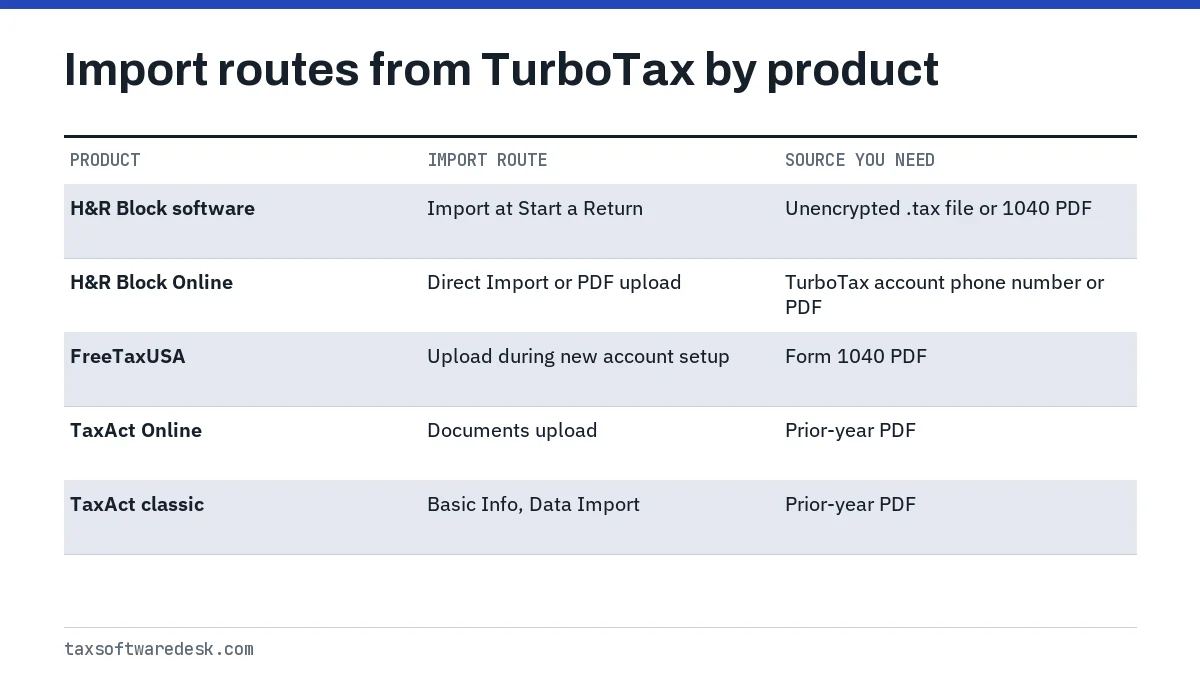
The route you pick decides how much data transfers. H&R Block says a tax data file brings in more of the return than a PDF does, so a TurboTax Desktop user with a .tax file should use the file, and a TurboTax Online user should download the PDF or try Direct Import.
H&R Block import TurboTax steps: data file or PDF
The H&R Block downloadable software handles the import at the very start of a new return. The help article describes the order below; screen wording changes slightly each year.
- Find last year's TurboTax file. Desktop users look in Documents, TurboTax, for a file ending in the year, such as .tax2025. TurboTax Online users download the PDF from Tax Home, Your tax returns & documents.
- Open H&R Block's software and select Start a Return on the taxes screen for the new year.
- Choose the type of file you are importing: a TurboTax data file or a PDF.
- Browse to the file, or drag and drop it if it is a PDF.
- Select Import Selected File, then View Summary to see what came across.
- Select Next, name the new return and let the program save it. H&R Block saves returns to the Documents, HRBlock folder by default.
Why H&R Block will not read a TurboTax file
H&R Block's help center names encryption as the usual cause. TurboTax saves returns as encrypted files by default, and H&R Block cannot convert an encrypted file. The fix H&R Block describes is to open last year's return in TurboTax Desktop, make a duplicate copy and save that copy without encryption, then import the unencrypted copy.
That fix needs the TurboTax Desktop program for the same year, because a .tax file only opens in the TurboTax edition for its tax year. If you no longer have it, skip the file and import a PDF instead. Our page on the TurboTax .tax file explains which edition opens which extension.
How Direct Import works when you transfer TurboTax to H&R Block Online
Direct Import is H&R Block's way to transfer TurboTax to H&R Block Online without a file. H&R Block announced it on January 29, 2024, for its DIY online products: you enter the phone number linked to your TurboTax account, confirm your identity, and H&R Block retrieves up to 150 fields from your prior-year TurboTax return.
If the Direct Import option does not appear on your start screen, or the phone number check fails because your TurboTax account uses an old number, fall back to the PDF upload. Update the phone number in your TurboTax account first if you would rather retry; our guide to TurboTax login problems covers account recovery when the old number no longer works.
FreeTaxUSA import TurboTax and TaxAct import from TurboTax
Neither FreeTaxUSA nor TaxAct reads a TurboTax .tax file. Both accept a PDF of last year's return, and both have a timing rule that trips people up.
FreeTaxUSA
FreeTaxUSA's switching instructions are: download the PDF of last year's Form 1040 from TurboTax, create a new FreeTaxUSA account and upload the PDF when the prompts offer it. FreeTaxUSA staff state the prior-year PDF can only be imported when the account is new. Once you move past that screen, the only way back is a fresh account, because an upload at that point could overwrite what you already typed.
TaxAct
TaxAct accepts a prior-year return in PDF format. In TaxAct Online, upload it from the Documents area of the dashboard. In the classic interface, go to Basic Info, then Data Import, choose the option to import your PDF return and browse to the file. TaxAct warns that the import removes anything already entered in the new return and cannot be used after you print or file the current year.
TaxAct also says a PDF made by another tax program brings in less than its own PDF would, because it only imports data that meets its import criteria. Expect names and basic details to fill, and plan to check or retype carryovers.
| Product | TurboTax .tax file | TurboTax PDF | When you must import |
|---|---|---|---|
| H&R Block software | Yes, if not encrypted | Yes | Start of a new return |
| H&R Block Online | Not confirmed; use the PDF | Yes | Start of a new return; Direct Import also offered |
| FreeTaxUSA | No | Yes (Form 1040 PDF) | Only when the account is new |
| TaxAct | No | Yes | Before entering data; not after print or file |
Getting the right TurboTax PDF before you switch
Every route except the data file depends on a clean PDF, so get it before you close anything. TurboTax Online keeps the past seven years of returns under Tax Home, Your tax returns & documents, with a Download/print return (PDF) link. Desktop users choose File, then Print/Save for Your Records, then Save As PDF.
- Use the PDF TurboTax generated, not a scan or phone photo of a paper copy. Importers read text fields, not images.
- Remove any password you added to the PDF before uploading.
- Make sure the PDF includes the federal Form 1040 pages, not only a state return or a filing summary.
- Keep a second copy of each year's PDF outside your tax program folder.
If the TurboTax PDF will not download or open, the fixes are on TurboTax printing problems, and older years are covered in downloading a prior-year return from TurboTax.
Which carried-over numbers should you check after the import?
Check every number that affects this year's tax before you file. An import copies what the source said, and a partial PDF read can drop a figure without warning. Compare the new return against last year's PDF line by line for the items below.
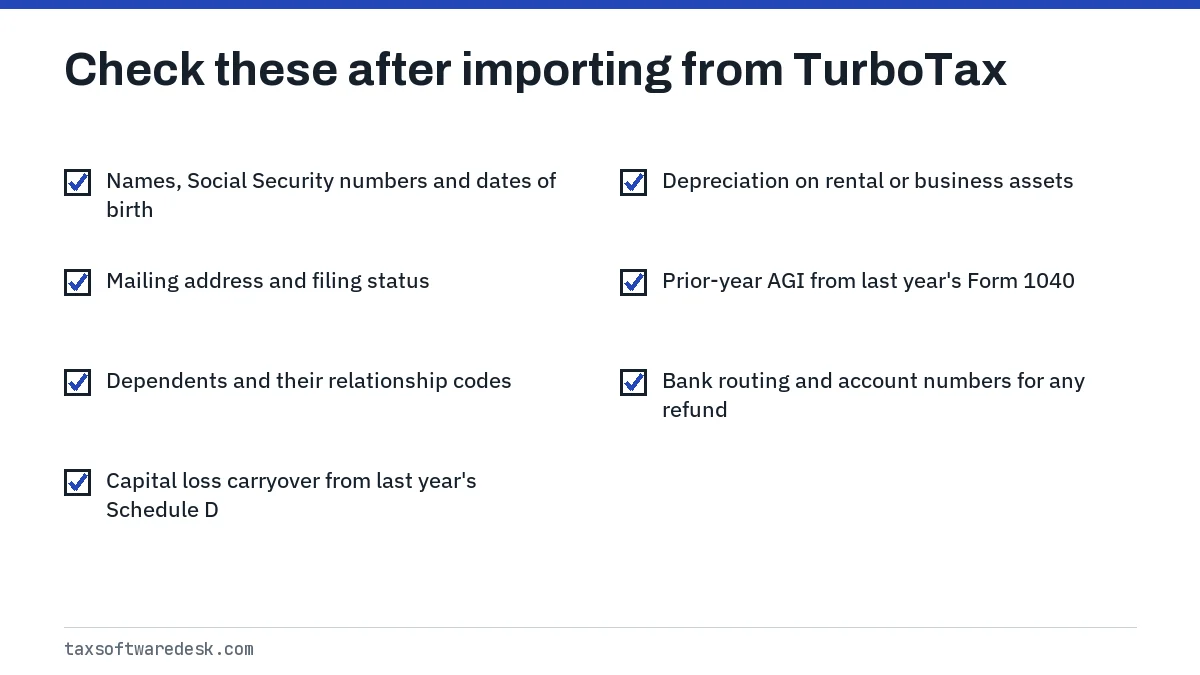
Pay particular attention to last year's adjusted gross income (AGI). The new product uses it to sign your e-file with a Self-Select PIN, and an AGI that does not match IRS records gets the return rejected. If it came across wrong, type the adjusted gross income figure printed on last year's Form 1040 and see our page on the prior-year AGI or PIN for the special cases.
Step by step
Get last year's file
Locate the TurboTax .tax file (Desktop) or download the Form 1040 PDF from Tax Home (Online).
Start a new return
Open the new product and begin a return; the import is offered only at the start.
Choose the import type
Pick TurboTax data file, PDF or Direct Import, depending on what the product accepts.
Import and review the summary
Run the import and view the summary of what transferred.
Check carried-over figures
Compare personal details, carryovers and prior-year AGI against last year's return before filing.
Common questions
Can H&R Block import TurboTax files from TurboTax Online?
Not as a data file. H&R Block's software reads TurboTax Desktop .tax files, but not TurboTax Online returns. Download the PDF of your Online return and import that, or use Direct Import in H&R Block's online product.
Why does H&R Block say my TurboTax file cannot be converted?
TurboTax saves returns encrypted by default, and H&R Block cannot read an encrypted file. Open the return in the matching year of TurboTax Desktop, save a duplicate without encryption and import that copy, or use the PDF instead.
Can I import a TurboTax return into FreeTaxUSA after I already started?
No. FreeTaxUSA only allows the prior-year PDF upload when an account is new. If you passed that screen, you would need to open a new account to use the import.
Does TaxAct import TurboTax .tax files?
No. TaxAct accepts a prior-year return as a PDF and says data from another company's PDF is imported only where it meets TaxAct's criteria. The import also overwrites anything already entered in the new return.
Will my TurboTax carryovers transfer to H&R Block?
Some will, and a data file carries more than a PDF. Check capital loss carryovers, depreciation and prior-year AGI by hand against last year's return, because a missing carryover will not trigger an error.
Do I lose my old TurboTax returns if I switch?
Your TurboTax account and past returns stay where they are, but download a PDF of every year you may need now so you are not dependent on that account later.
Sources
- H&R Block: How do I import last year's tax return into my H&R Block Tax Software? hrblock.com
- H&R Block: Why won't H&R Block Deluxe import my TurboTax return? hrblock.com
- H&R Block news release: Direct Import feature (January 29, 2024) investors.hrblock.com
- FreeTaxUSA: How to switch to FreeTaxUSA from TurboTax community.freetaxusa.com
- TaxAct: Importing prior year returns support.taxact.com
- TaxAct: Why didn't all of my PDF data import? support.taxact.com
We check figures against these official pages. Rules change; confirm anything that affects a deadline or payment with the agency before you act.
Tell us what happened
Describe your situation and our editors will use it to improve this guide. If you leave your email, we may reply with a pointer to the right page or official contact. We never share your details.